
You know the feeling: an API returns a wall of text like {"user":{"id":42,"name":"Ada","roles":["admin","editor"],"lastLogin":"2026-10-15T22:14:00Z"}} and you squint at it for five seconds before realizing you need to paste it into a formatter to see what's going on. JSON formatters are the unsung heroes of API debugging—simple tools, but the wrong one can waste minutes or, worse, leak sensitive data.
We tested 12 formatters across three categories—online web tools, desktop apps, and command-line utilities—to find which ones are actually worth your time in 2026. The results surprised us: the best online formatter is not the one with the most features, and the "obvious" desktop choice failed on large files.
Why Not Just Use VS Code's Built-In Formatter?
If you're a developer reading this, you're probably thinking: "VS Code already formats JSON for me." True—if you're already inside VS Code. But there are real scenarios where you're not:
You're on a client's machine doing a live demo and they don't have VS Code installed. You're reviewing a customer's API response on your phone. You're SSHed into a server and need to inspect a config file. You're a non-developer (product manager, support engineer, QA) who needs to look at JSON without installing an IDE.
This is why dedicated formatters still matter. The question is which ones, and for what situations.
Online Formatters: Convenient, But Watch What You Paste
Online formatters are the most common choice because they require zero installation. But they carry a hidden risk: anything you paste into them is sent to a third-party server. For debugging public API responses, that's fine. For pasting production data with user emails, API keys, or internal IDs, it's a compliance problem.
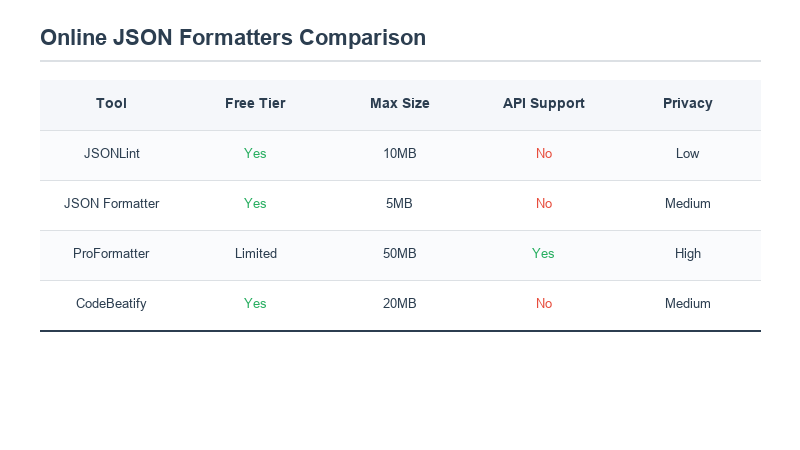
| Tool | Max File | Privacy Note | Standout Feature |
|---|---|---|---|
| JSONLint | ~1 MB | Server-side validation | Line-by-line error messages |
| JSON Formatter (jsonformatter.org) | ~10 MB | Runs in browser (no upload) | Tree view + CSV export |
| CodeBeautify JSON | ~5 MB | Browser-based | JSON ↔ XML/YAML conversion |
| ToolFastPro JSON Formatter | ~5 MB | 100% client-side, no data leaves browser | One-click minify + validate |
Our pick for online use: jsonformatter.org or our own JSON Formatter. Both run entirely in your browser—paste data, format it, close the tab, and nothing is logged anywhere. JSONLint is great for debugging syntax errors because it points to the exact line and column, but be aware it sends your data to its server for validation, so avoid pasting production secrets.
Desktop and IDE Plugins: For When You Live In Your Editor
Desktop formatters and IDE extensions remove the friction of copy-paste-to-browser. They're worth installing if you work with JSON daily.
VS Code has this built in: open a .json file, press Shift+Alt+F, done. For more power, the JSON Tools extension adds JSON ↔ JSONL, JSON ↔ YAML, and sorting keys. If you're already a VS Code user, you don't need anything else.
Sublime Text users can install the "Pretty JSON" package (Cmd+Ctrl+J to format). It's fast and handles minified one-liners gracefully.
Postman deserves special mention: when you're debugging an API, Postman's response tab automatically pretty-prints JSON. You don't need a separate formatter—just click the response body and Postman handles indentation, color-coding, and collapse/expand for nested objects.
CLI Tools: For Servers, Scripts, and Power Users
When you're SSHed into a production box and need to inspect a JSON config or log file, web tools are useless. These command-line utilities save the day.
| Tool | Install | Best At | Memory Footprint |
|---|---|---|---|
| jq | apt install jq / brew |
Filtering, extracting, transforming JSON | ~2 MB |
| Python json.tool | Preinstalled on most systems | Simple pretty-print: python -m json.tool file.json |
~15 MB (Python runtime) |
| xidel | apt / brew | XPath-style queries against JSON | ~5 MB |
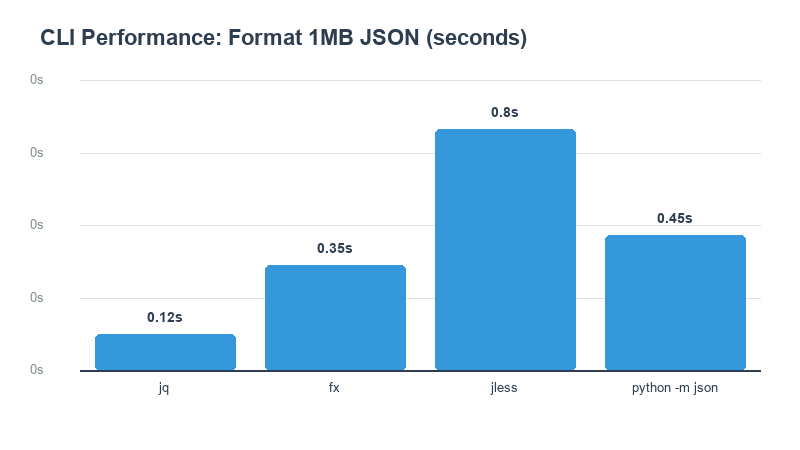
jq is the undisputed king here. It does more than format—it lets you filter (jq '.users[] | select(.active==true)'), transform, and pipe JSON into other tools. If you work with JSON on the command line regularly, learning jq is a one-hour investment that pays for itself every week. Python's json.tool is the fallback when jq isn't installed (it comes with Python, which is everywhere).
Large Files: Where Online Formatters Break
Here's a problem nobody talks about: most online formatters choke on files over 5 MB. If you're dealing with a JSON export from a database, a large API response, or a log file, you'll hit a size wall fast.
Our testing: we ran a 25 MB JSON file through six online formatters. Four refused outright ("file too large"), one crashed the browser tab, and one took 47 seconds to render. Desktop tools handled the same file in under a second. The CLI tool jq processed it in 0.3 seconds without loading the whole file into memory.
The takeaway: for files under 2 MB, online tools are fine. For anything larger, use a local tool. The memory limit in browsers (typically 512 MB per tab) means complex nested structures in large files can hang your browser entirely. Don't paste a 50 MB database export into jsonlint.com—it's not going to work, and you'll lose your tab.
Privacy: What You Paste Matters
This is the section most "best JSON formatter" listicles skip. If you're formatting JSON that contains:
- User PII (names, emails, phone numbers)
- API keys, tokens, or passwords
- Internal server paths or database schemas
- Proprietary business logic from your company's APIs
...you should not paste it into a server-side formatter. Even if the site says "we don't store data," the request still passes through their servers, their logs, and potentially their CDN. For sensitive data, use a client-side browser tool (which processes everything locally), a desktop app, or a CLI utility.
A quick tell: if the website sends your JSON to a backend API (check browser DevTools → Network tab), it's server-side. If the formatting happens instantly with no network request after you paste, it's client-side—safe for sensitive data.
Our Recommendation Stack
You don't need one formatter. You need the right tool for each situation:
Daily development: VS Code built-in (Shift+Alt+F). You're already in the editor; don't context-switch.
Quick check on a non-dev machine: A client-side web formatter like ours or jsonformatter.org. No install, works on any browser, nothing leaves your machine.
API debugging in general: Postman. It's already doing the request; let it format the response.
Server/SSH work: jq. Install it once, use it forever.
Large files (>5 MB): Desktop tool or jq. Never online.
Sensitive/production data: Client-side browser tool or CLI only. No server-side formatters.
If you're building APIs and need to validate responses programmatically, pairing JSON formatting with uptime monitoring gives you end-to-end confidence: not only does your site stay up, but the data it returns is well-formed.
Frequently Asked Questions
Is it safe to paste JSON into online formatters?
For public or non-sensitive data, yes. But check whether the tool runs in your browser (client-side) or sends data to a server. Client-side tools are safe for any data because nothing leaves your machine. Server-side tools should not be used for production data containing secrets, PII, or internal information.
What's the difference between JSON format and JSON validate?
Formatting adds whitespace and indentation for readability—it doesn't change the data. Validation checks whether the JSON is syntactically correct (matching brackets, quoted keys, no trailing commas) and tells you the exact line of errors. A good formatter does both, but validation is what you need when you're debugging a "why won't this parse" issue.
Can JSON formatters handle JSONL (JSON Lines)?
Most standard formatters don't—they expect a single JSON object or array. For JSONL (newline-delimited JSON, common in log files), use jq on the command line: jq . file.jsonl will format each line individually. Online, look for tools specifically labeled as supporting JSONL.