Your customer just emailed: "Your site is broken." You open it on your phone—it loads fine. You check on your laptop—also fine. Is it actually down, or is it just them? This single question costs online businesses millions in lost revenue every year, because answering it wrong means either ignoring a real outage or panicking over a local cache glitch.
The truth is, "down" is not one thing. A server can be dead, a DNS record can be misconfigured, a CDN edge node can be stale, or your browser can just be holding onto a corrupted cookie. Each cause has a different signature, and each requires a different check. Below are seven methods that take less than thirty seconds each, ordered from fastest to most diagnostic.
1. The 10-Second Rule: Try These First
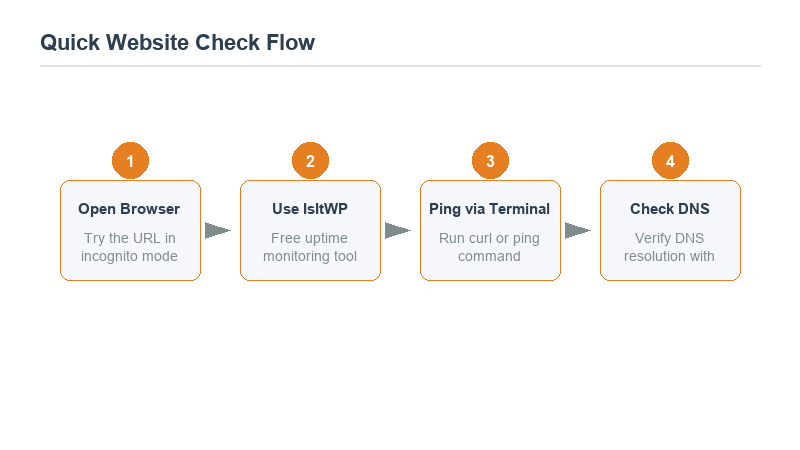
Before opening any tool, eliminate the dumb causes. Nine times out of ten, the problem is on your end, not the server's.
Hard refresh: On Windows, press Ctrl+F5. On Mac, Cmd+Shift+R. This bypasses the browser cache entirely. If the site loads after a hard refresh, you were looking at a stale cached version, not an outage.
Try incognito/private mode: Extensions, ad blockers, and VPNs frequently break modern websites. A private window disables all of them. If the site works in incognito but not your normal browser, one of your extensions is the culprit—start by disabling your ad blocker.
Switch networks: Turn off Wi-Fi and use mobile data. If the site loads on cellular but not your Wi-Fi, your router, DNS server, or ISP is the problem—not the website.
2. Down For Everyone Or Just Me? (IsItDownRightNow & Alternatives)
When the quick checks fail, you need an external perspective. These services ping your site from multiple locations around the world and report back whether they can reach it.
| Service | Checks From | Free Tier Limit | Best For |
|---|---|---|---|
| IsItDownRightNow | US & EU (single check) | Unlimited, no signup | Quick sanity check |
| DownDetector | User reports + automated | Unlimited | Consumer services (Google, Instagram, etc.) |
| UptimeRobot (status page) | Global (45+ locations) | 50 monitors free | Ongoing monitoring, not just one-off |
| GlobalPing / GTmetrix | 20+ global cities | Few free checks/day | Regional outage diagnosis |
The key insight: if a global checker says the site is up but your customer says it's down, you may have a regional outage. A CDN like Cloudflare or Akamai routes traffic through edge nodes; if one edge node in, say, Singapore is down, only your Southeast Asian visitors will see errors while the US-based checker reports everything fine. This is why single-location checks can be misleading—always run at least one multi-region tool before concluding the site is healthy.
3. Dig Into DNS: The Silent Failure
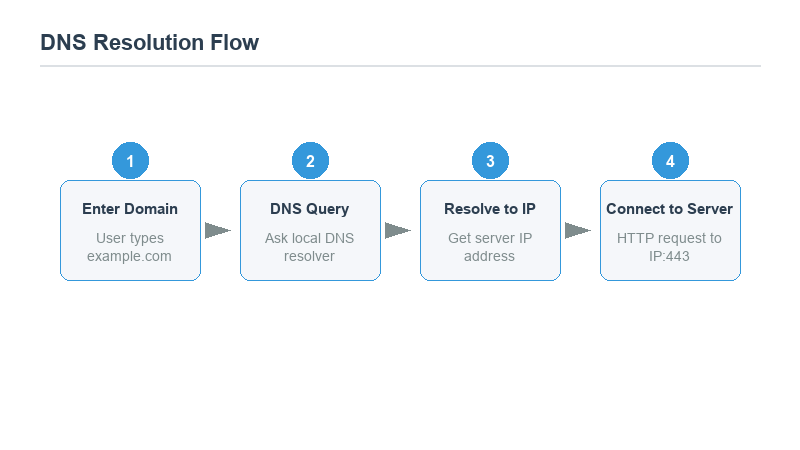
DNS failures are the most underdiagnosed cause of "my site is down." When DNS breaks, the browser literally cannot find the server's IP address. The error message varies by browser ("This site can't be reached," "DNS_PROBE_FINISHED_NXDOMAIN"), but the root cause is the same: the domain name did not resolve to an IP.
How to check: Open a terminal and type nslookup yourdomain.com (or dig yourdomain.com on Mac/Linux). If this returns an IP address, DNS is working. If it returns nothing or an error, your DNS records are the problem.
Common DNS culprits: expired domain name (yes, this happens), nameserver records pointing to the wrong host after a migration, or a Cloudflare proxy that got toggled off without updating the origin server settings. If you recently switched hosting providers, wait 24–48 hours—DNS propagation is not instant, and some ISPs still hold the old records.
4. Check the HTTP Status Code: Know Exactly What's Wrong
Every server response includes a three-digit code. Learning to read these tells you more than any generic "site is down" message ever could.
| Code | Meaning | Is It "Down"? | Action |
|---|---|---|---|
| 200 | OK — site is working | No | User's local issue |
| 301/302 | Redirect — moved permanently/temporarily | No | Follow the redirect target |
| 403 | Forbidden — bot blocked or file permissions | Partially | Check WAF rules, file chmod |
| 404 | Not found — page moved, site is up | No, wrong URL | Check if the link changed |
| 500 | Internal server error | Yes — app crashed | Check server logs, rollback deploy |
| 502/503 | Bad gateway / service unavailable | Yes — server overloaded or down | Contact host, check resources |
| 504 | Gateway timeout — server too slow | Degraded | Check DB queries, slow plugins |
To see the status code without installing anything, open a terminal and run curl -I https://yourdomain.com. The first line shows the code instantly. If you get a connection timeout with no code at all, the server is unreachable at the network level—not just returning an error page. That points to a firewall, host outage, or DNS issue rather than an application problem.
5. Test From a Mobile Network Different From Yours
Your office Wi-Fi and your customer's home internet may route through completely different paths to the same server. This matters because ISPs sometimes block specific domains, or your company's firewall may be the one blocking access.
The simplest test: text the URL to a friend in a different city and ask them to open it. Better yet, use your phone on 4G/5G (not Wi-Fi) to load the site. If it works on your phone's cellular connection but not your computer, the problem is your local network or ISP—not the website.
For a more structured version, browser developer tools (F12 → Network tab) can show you exactly where the request fails: DNS lookup, TCP connection, TLS handshake, or waiting for response. Each stage of failure has a different fix.
6. Check the Host's Status Page and Your Email
If you use a managed host (Cloudways, SiteGround, AWS, Vercel, Netlify), they almost certainly have a public status page. Before assuming your server died, check whether the host itself is experiencing an outage.
Common status page URLs:
- Cloudflare: cloudflarestatus.com
- AWS: health.aws.amazon.com
- Vercel: status.vercel.com
- Netlify: netlifystatus.com
- DigitalOcean: status.digitalocean.com
Also check your inbox. Hosts send emergency emails about planned maintenance, server migration, or billing suspension. A surprisingly common cause of "suddenly down" is an expired credit card that triggered an automatic suspension—often caught too late because the notification went to a spam folder.
7. Set Up Proactive Monitoring So You Never Wonder Again
The best outage check is the one you never have to do manually. Uptime monitoring services ping your site every minute from multiple locations and alert you the moment it goes down—usually before any customer notices.
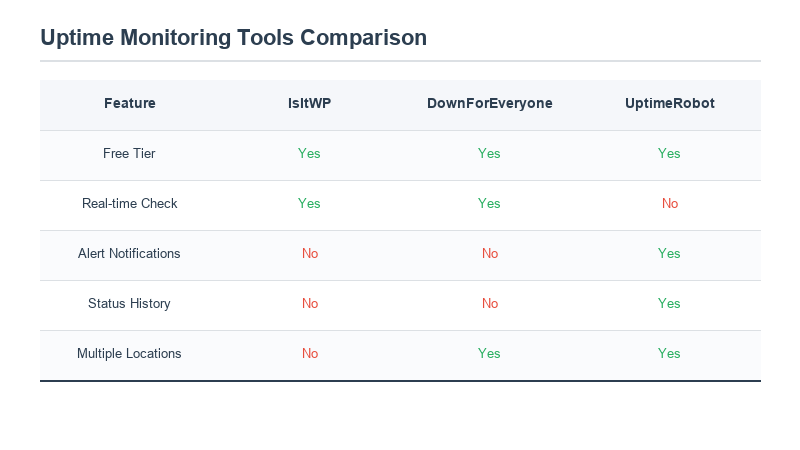
For most small sites, a free UptimeRobot account (50 monitors, 5-minute checks, email alerts) is enough. If you run an e-commerce store or SaaS product, step up to a paid plan with 1-minute checks and SMS/Slack notifications. The cost—$7–$15/month—is trivial compared to the revenue lost during an hour of downtime you didn't know about.
One often-overlooked feature: certificate expiry monitoring. A surprising number of sites "go down" because their SSL certificate lapsed and the host didn't renew it automatically. Good monitoring tools check for this and alert you 30 days before expiry, giving you time to renew without visitors seeing scary browser warnings.
What to Do When You Confirm It's Actually Down
If you've run through all seven checks and the site is genuinely unreachable, your response depends on the severity:
Less than 1 hour downtime: Most hosts will recover automatically. Check the status page, wait 15 minutes, re-test. Don't panic-reboot or roll back deploys during the first 15 minutes—the host may already be fixing it.
1–4 hours: Open a support ticket with your host. Include the exact error code (from step 4), the time it started, and screenshots. While waiting, post a status update on your social media channels so customers know you're aware. If you have a status page, update it.
4+ hours: Consider a temporary failover. If your DNS allows quick changes, you can point your domain to a static maintenance page hosted elsewhere (Netlify, GitHub Pages) while your host works on the issue. This at least shows visitors a friendly message instead of a browser error.
For developers managing their own infrastructure, understanding how to validate data quickly is critical during incidents—tools like JSON formatters help when debugging API responses during outages.
Frequently Asked Questions
If a website is down for me but not others, whose problem is it?
Start with your network. Switch to mobile data, disable VPNs and ad blockers, and try a different browser. If the site works everywhere except on your connection, your ISP, router, or local firewall is blocking it. If it works on mobile but not your computer, flush your DNS cache (Windows: ipconfig /flushdns, Mac: sudo dscacheutil -flushcache).
How often should I check if my website is up?
You shouldn't check manually at all. Set up automated monitoring (UptimeRobot, BetterStack, or Pingdom) to check every minute. Manually checking means you'll only find out when a customer tells you—by then, you may already have lost hours of traffic and revenue.
What's the difference between 502 and 503 errors?
A 502 means the reverse proxy (nginx/Cloudflare) got an invalid response from the backend server. A 503 means the backend is intentionally unavailable—usually due to overload or maintenance. Both mean your app isn't serving pages, but 503 is often temporary (traffic spike, deploy in progress) while 502 usually points to a crashed PHP process or misconfigured upstream.