You Already Waste Hours a Week on Slow Movement
Here is a benchmark worth internalizing: a knowledge worker who spends eight hours a day interacting with a computer performs something like 150 to 250 mouse and keyboard operations per hour, many of them edits, switches, and navigations that could be done instantly with a shortcut. Industry studies of developer and admin productivity have repeatedly found that heavy keyboard shortcut users save 15 to 25 seconds per frequently repeated action. Stack that across a day and the result is not trivial — it is often an hour or more of reclaimed time every single week, with zero additional effort cost once the habit is formed.
The reason most people never get there is not lack of willingness. It is that shortcuts are taught as a giant list to memorize, which guarantees failure. The smarter path is to stop trying to learn a hundred shortcuts and instead pick the ten that collapse the actions you perform most often, then build them into a genuine habit using the same loop of trigger, action, and reward that drives every durable behavior change. Done right, keyboard mastery is not about knowing more — it is about moving less.
Start With the Ten Shortcuts That Slash Your Most Common Actions
Forget the exhaustive cheat sheets for a moment. Here are the ten shortcuts that deliver the biggest return for the widest range of office work, and they work across Windows, macOS, and most major applications with only minor variations: undo and redo, copy and paste, cut, find, save, switch between open windows or applications, select all, duplicate, navigate to the next field or cell, and close the current tab or window. Master these ten cold, and you will already outpace a significant fraction of the people around you.
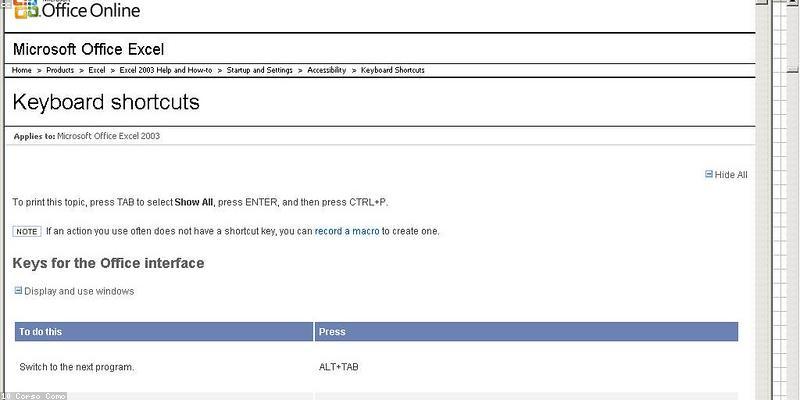
The sequence that most accelerates your daily flow, though, is the one most people neglect: switching between windows and apps, and moving focus within a document without touching the mouse. Jumping from your email to your calendar, or from a report to a chat thread, is one of the most repeated physical gestures in office work, and each switch currently costs you a mouse travel plus a click. Learning to switch apps with a single key combination collapses that whole motion into one keystroke, and you will feel the difference within a single workday.
If you run most of your work inside a small set of power tools — a text editor, a spreadsheet, a design app, or a terminal — the next step is to learn that tool's dozen most-used shortcuts specifically. The payoff is much larger than generic OS shortcuts, because these are the micro-actions you repeat hundreds of times. A web developer who memorizes their editor's jump-to-file, toggle comment, duplicate line, and multi-cursor shortcuts genuinely works at a different speed than the colleague next to them.
Turning Shortcuts Into a Habit, Not a Cheat Sheet
The biggest reframe is understanding that memorizing a list is not the goal. A shortcut only helps when it fires automatically, without thought, in the middle of actual work — and that requires behavioral conditioning, not study. The reliable method is to adopt one or two new shortcuts at a time and deliberately force yourself to use them for a few days, even when it is clumsy, until the movement becomes second nature. Adding shortcuts in small batches vastly outperforms the "print the poster and try to remember it all" approach.
Because habit formation is the real bottleneck, your shortcut practice benefits enormously from the same structure that makes any daily behavior stick. A solid habit loop builder can help you design the cue (the moment you reach for the mouse), the routine (the shortcut you substitute), and the reward (the satisfying, faster finish) so the new motion actually takes root. Without this, most shortcut lists are memorized and then forgotten within the week.
There is also a measurement trick that keeps you honest. Once a month, count how many times you still reach for the mouse to do something you have deliberately learned as a shortcut. If the number is not falling, slow the pace of adoption and focus on just one action until it is automatic. Depth beats breadth every time in this skill.
Comparison: Tools That Supercharge Your Shortcut Workflow
While every operating system ships with solid built-in shortcuts, a handful of tools exist specifically to extend the concept far beyond what a default install gives you. The comparison below covers the utilities and platforms people most often add to their setup, with realistic pricing so you can decide what is worth paying for.
| Platform / Tool | Key Features | Pricing |
|---|---|---|
| Microsoft PowerToys | PowerToys Run (app launcher), Keyboard Manager to remap keys, FancyZones window layouts, text and image utilities, open source | Free (Windows, Microsoft Store) |
| Raycast | Lightning-fast launcher, extensible with hundreds of extensions, clipboard history, window management, scripting support | Free for core; Pro from ~$8/mo |
| Alfred | macOS launcher, clipboard history, snippets, file navigation, workflows for automation | Free for basic; Powerpack one-time ~$34+ |
| AutoHotkey | Full scripting to create custom hotkeys and macros, text expansion, GUI automation, free and powerful | Free (Windows, open source) |
| TextExpander | Snippet and abbreviation expansion, fill-in snippets, platform-wide text shortcuts, team sharing | From ~$3.33/user/mo billed yearly |
| Karabiner-Elements | Deep macOS keyboard customization, complex modifications, per-app rules, remapping and layers | Free (macOS, open source) |
If you are on Windows and want the biggest practical upgrade for free, start with PowerToys — its Keyboard Manager lets you remap any key, and its launcher collapses app-switching into a single keystroke. On macOS, Raycast gives a modern, extensible launcher that often replaces Alfred for newcomers, while Alfred's one-time Powerpack appeals to anyone who dislikes subscriptions. AutoHotkey and Karabiner are for the tinkerers who want total control, and they cost nothing but learning time. Add TextExpander only if you type the same long strings repeatedly and want them to expand from short abbreviations — that alone can save a surprising amount of daily typing.
Tool-Specific Shortcuts That Move Real Work
Beyond the operating system, your productivity explodes the day you learn the power shortcuts of the three tools you use most. In a spreadsheet, the absolute game-changers are the keyboard navigation for selecting ranges, jumping to the last filled cell, autofilling a formula, and inserting a row or sheet — combined, these turn tedious data manipulation into a series of tiny keystrokes. In a modern text editor, multi-cursor editing, quick-find-in-file, and jump-to-definition are the shortcuts that separate fast writers from slow ones.
The pragmatic way to learn these without dumping hours into tutorials is to work only on the actions that are painful in your current tool of record. Every time you feel a touch of friction doing something repetitive, that is your signal: look up the shortcut for exactly that action, adopt it for the next few days, and move on. Over a month of this "friction-driven learning," you will have built a personal shortcut set that matches your actual work, which is worth more than any generic top-50 list you could memorize.
For capturing and structuring all these learned shortcuts into a repeatable system, the same framework that applies to how smart notes apps organize information is useful: keep a single, small, searchable document of your adopted shortcuts grouped by tool, and prune it when you find something no longer used. A lean, personal reference you actually consult beats a bloated cheat sheet you avoid.
Systematize Your Shortcuts So Nothing Gets Lost
Shortcut mastery tends to decay unless you systematize it, because the added-value options quietly slip out of memory. The most durable approach is a simple, structured routine. First, maintain a living reference document that is tiny enough to read in two minutes and lists only your actively used shortcuts by tool. Second, review it during your monthly reset and delete anything you have not used in a month — inactivity is the signal that it was not worth learning. Third, take an annual pass through your tool's changelogs, because major software updates regularly rename or add shortcuts.
It also pays to standardize across your apps where you can. When your email, calendar, chat, and notes all use the same convention for common actions like searching or creating, your short-term memory load drops and your fingers stop second-guessing. This consistency is exactly the kind of efficiency that scales across the whole day, and it is why power users so often report their entire digital workflow feeling lighter once the keyboard becomes the default. The goal is not keyboard purism — it is that the fastest, most natural path to every common action becomes a reflex.
For more, check out: and .
For more, check out: and .
What is the fastest way to learn keyboard shortcuts as a busy professional?
Stop trying to memorize lists. Identify the five actions that annoy you most each day, look up the shortcut for each, commit to using them for three to five days even when it is slower, and only then add the next five. This friction-driven approach converts shortcuts into reflexes instead of facts.
Are paid shortcut tools like Raycast worth it, or is free enough?
For most people, the free tier of Raycast or the entirely free PowerToys and Alfred basics are enough. Pay for Raycast Pro or Alfred's Powerpack only after you have hit the free tool's limits — typically extensions, advanced workflow automation, or clipboard syncing across devices.
Will learning keyboard shortcuts break my muscle memory for touch typing?
No. Shortcuts are additional, adjacent motor skills that layer on top of touch typing. They share the keyboard but live in different muscle-memory patterns. Occasional tripping happens only during the first adoption days of each new shortcut and fades quickly.
How do I enforce keyboard use when the mouse is "just there"?
Remove the physical temptation for a few weeks: put the mouse out of reach or disable it for one focused hour a day. Forced exposure is the fastest way to build new motor habits. After the habit forms, you can bring the mouse back for tasks where it is genuinely better, like fine positioning in design work.
Do keyboard shortcuts really save measurable time?
Yes. When you count the per-action savings across the hundreds of operations in a workday, consistent keyboard users reclaim roughly 15 to 25 seconds per frequent action and often an hour or more per week. The savings compound as more actions become reflex.
Get one practical tool tip a week
Short, useful, no spam. Unsubscribe anytime.