
Why AI Project Planners Matter in 2026
According to the Project Management Institute, organizations waste roughly 12% of every dollar on poor project performance, and teams lose an average of 9.9 hours per week re-organizing tasks, chasing updates, and re-estimating work that shifted midway. Multiply that across a 10-person squad and you are burning close to 100 hours a week on coordination alone. AI project planners exist to reclaim exactly that overhead — not by removing your judgment, but by automating the estimation, dependency-checking, scheduling, and reporting grunt work that eats your calendar.
The market has matured beyond gimmicks. Modern platforms now ship genuinely useful AI: auto-generated task breakdowns, dependency suggestions, effort estimates trained on your team's history, and rescheduling logic that reacts when a deadline slips. Before you commit, you need a clear picture of which tool actually matches your workflow.
What an AI Project Planner Actually Automates
An effective AI project planner handles four heavy lifting jobs so your team can focus on the work itself:
- Estimation: AI analyzes past tasks of similar scope and suggests realistic effort ranges, replacing gut-feel hour guesses.
- Dependency mapping: It flags tasks that are blocked by others and warns you when a delay cascades through the downstream chain.
- Scheduling and rescheduling: When one deliverable slips, the planner recalculates dates and shifts the critical path automatically.
- Progress reporting: It summarizes status, surfaces risks, and drafts update messages for stakeholders without you writing a single paragraph.
These features fold into your existing AI workflow templates, so you can standardize how projects kick off, review blockers, and close out.
Top AI Project Planning Tools Compared
Here is a snapshot of five genuine platforms with their AI capabilities, pricing, strengths, and honest weaknesses.
| Tool | Pricing (as of 2026) | Strongest Scenario | Weaknesses |
|---|---|---|---|
| Asana | Free tier; Starter ~$10.99/user/mo; Advanced ~$24.99/user/mo | AI Work Graph, smart subtask suggestions, and deadline-risk alerts for cross-functional teams | AI features locked to higher tiers; advanced reporting can feel bloated |
| ClickUp | Free forever; Unlimited ~$7/user/mo; Business ~$12/user/mo | AI task generation, meeting notes-to-tasks, and flexible custom views heavy on automations | Can be overwhelming; AI accuracy varies with how clean your data is |
| Linear | Free up to 2 users; Business from $8/user/mo | AI-assisted issue estimation and dependency insights for fast-moving engineering teams | Limited Gantt-style scheduling; weaker fit for non-technical planning |
| Notion | Free; Plus ~$10/user/mo; Business ~$20/user/mo | AI writing, summarization, and project docs inside flexible databases | Not a native scheduler; requires templates and setup to behave like a true planner |
| Trello | Free; Standard ~$5/user/mo; Premium ~$10/user/mo | Butler automation and AI card suggestions for visual, kanban-style workflows | Limited dependency and timeline power; AI is minimal compared to rivals |
None of these is objectively "best." The right pick depends on whether you need deep scheduling, engineering-grade estimation, or a lightweight visual board. Pair your choice with AI meeting assistants so that action items from calls flow straight into your planner.
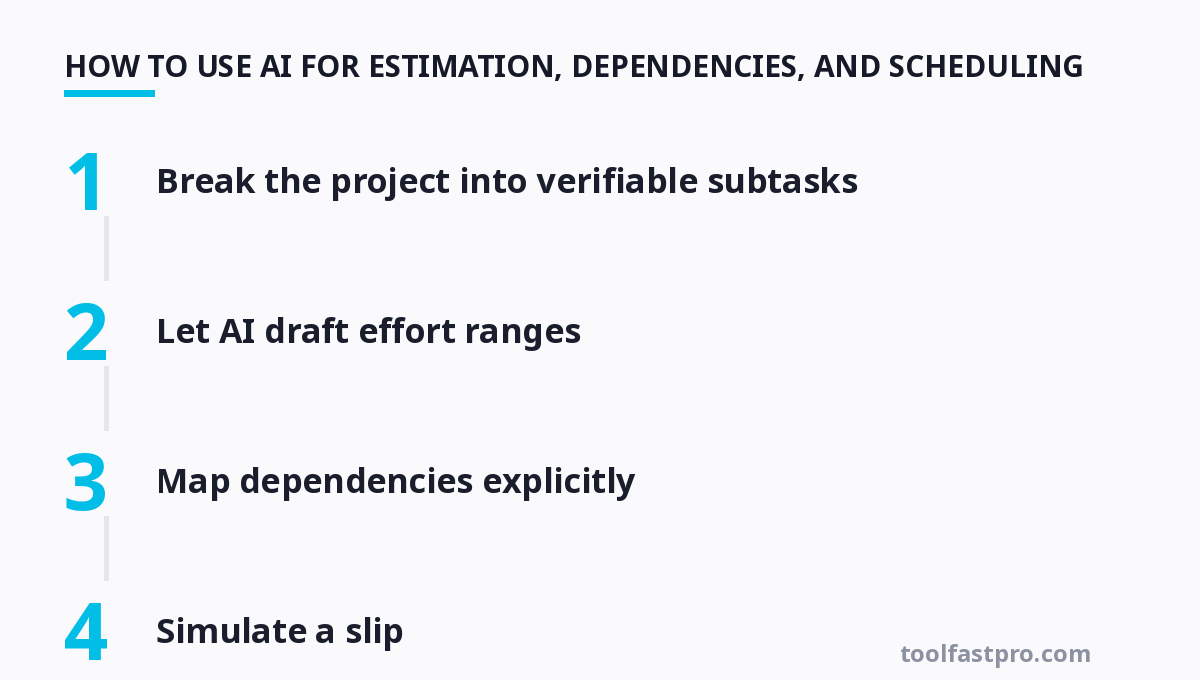
How to Use AI for Estimation, Dependencies, and Scheduling
A tool alone changes nothing. You have to feed it structured prompts and clean data. Here is a repeatable process that works across Asana, ClickUp, and Linear.
Step 1: Break the project into verifiable subtasks
Do not ask the AI for one big estimate. Split the work into units smaller than 8 hours. Write each subtask so a reviewer can verify it as done — "Upload CSV and map columns," not "handle data."
Step 2: Let AI draft effort ranges
Use the planner's estimation feature or a prompt like: "Estimate effort for each of these subtasks based on similar logged work, return optimistic, likely, and pessimistic hours." Review every number; the model is only as good as the history it learned from.
Step 3: Map dependencies explicitly
Declare predecessors on tasks that truly block others, not on everything. Over-declaring dependencies creates a brittle schedule where one slow task freezes five others. Keep the critical path thin.
Step 4: Simulate a slip
Ask the planner what happens if the longest task overruns by 20%. A good tool will show you the new end date and which downstream tasks shift. If the answer is vague, your dependency graph needs cleaning.
Step 5: Lock in a cadence for review
Every Monday, ask the AI to summarize completed work, flag at-risk tasks, and propose a revised schedule. This keeps estimates honest and builds the history the AI needs to get better at predicting.
When you chain these steps into repeatable routines, you are effectively building lightweight on top of your planner.
Real-World Pitfalls to Avoid
AI planners fail most often because of bad inputs, not bad models. Watch for these traps.
- Garbage-in estimates: If your past tasks lack logged hours or tags, the AI has nothing to learn from. Fix the data first, then trust the predictions.
- Over-reliance on the critical path: AI rescheduling assumes dependencies are correct. A single wrong link silently corrupts every downstream date.
- Feature sprawl: ClickUp and Notion can seduce you into building elaborate structures that nobody maintains. Start minimal and add complexity only when a real need appears.
- Prompt laziness: Weak prompts ("estimate this task") return generic numbers. The more context you give — scope, constraints, prior examples — the sharper the output.
- Ignoring the human override: If a senior engineer says a task is a week, do not let the model's 3-day estimate win. AI budgets are inputs, not verdicts.
If your needs lean toward autonomous, multi-step execution rather than simple scheduling, you may want to explore that can own entire sub-processes inside your workflow.
For more, check out: .
For more, check out: , project management and project dashboards.
Frequently Asked Questions
Will AI project planners replace project managers?
No, and that is not the point. The AI removes administrative load — estimation, scheduling, status reports — so project managers spend more time on stakeholder alignment, coaching, and judgment calls that models cannot make. Your role shifts from clerk to decision-maker.
What data does an AI planner need to make good estimates?
It needs a history of tasks with logged hours, team assignments, status changes, and ideally tags for task type and effort buckets. The richer and cleaner that history is, the more accurate the predictions become. Fresh accounts should expect rough estimates for the first month.
Does using AI require migrating my whole team?
Not necessarily. Tools like ClickUp and Notion integrate with project trackers, and Asana can import from CSV and other boards. Migrate incrementally: move one active project, calibrate the AI with real data, then expand once the team trusts the numbers.
How accurate are AI effort estimates compared to humans?
In practice, well-trained models match or slightly beat average human estimates for repetitive, well-scoped work, but they still struggle with novel, ambiguous, or cross-team tasks. Treat AI ranges as a baseline and keep human review on the critical path.
Which pricing tier actually unlocks the AI features?
It varies: Asana gates its full AI Work Graph behind Advanced (~$24.99/user/mo), ClickUp includes AI on paid plans starting at Unlimited, Linear offers limited AI on Business, and Notion's AI is available from Plus. Read the fine print before you pay, because the free tiers rarely include the good stuff.
Can AI planners integrate with my email and calendar?
Yes. Most platforms sync with Google and Microsoft calendars, and you can connect AI workflow templates plus AI meeting assistants to turn scheduling conflicts or meeting notes into tasks automatically.
How to Get Started Today
Do not buy a license before you know your pain point. Spend one week logging real effort in a free tier, run the estimation prompt above on two to three finished tasks, and compare the AI's ranges against what actually happened. Only then decide which paid plan fits. Start small, trust the data, and let the AI earn its keep by deleting the coordination overhead that has been quietly draining your team's calendar.
❓ Frequently Asked Questions
Why AI Project Planners Matter in 2026
According to the Project Management Institute, organizations waste roughly 12% of every dollar on poor project performance, and teams lose an average of 9.9 hours per week re-organizing tasks, chasing updates, and re-estimating work that shifted midway. Multiply that across a 10-person squad and you
What an AI Project Planner Actually Automates
An effective AI project planner handles four heavy lifting jobs so your team can focus on the work itself:
Top AI Project Planning Tools Compared
Here is a snapshot of five genuine platforms with their AI capabilities, pricing, strengths, and honest weaknesses.
How to Use AI for Estimation, Dependencies, and Scheduling
A tool alone changes nothing. You have to feed it structured prompts and clean data. Here is a repeatable process that works across Asana, ClickUp, and Linear.
Get one practical tool tip a week
Short, useful, no spam. Unsubscribe anytime.